MovieBox is one of the simplest ways to stream movies and TV shows in 2026. There is no account to create and nothing to pay before you press play: open the app, find a title, and it starts streaming within seconds. This guide brings everything together in one place — installing the free APK on Android, playing your first movie, switching language and subtitles, saving titles for offline viewing, and what to do when the latest update does not run well on your device.
This guide is written for beginners, so you do not need any experience with APK files or sideloaded apps. Each section stands on its own and gives you the exact taps to make, whether you are installing the app, playing your first movie, or saving a title for offline viewing. The guide covers Android phones and tablets first, because that is where MovieBox runs best, then explains how the same steps work on PC through BlueStacks, on iPhone and iPad, and on TV devices such as Firestick and Android TV.
MovieBox Pro Core Features
MovieBox Pro is the optional, account-based upgrade to the free MovieBox app. It keeps the same simple player and the same download system, then adds the core benefits below for viewers who want more from their streaming:
All Contents
Full access to the MovieBox library instead of a restricted subset of titles, so more movies and shows are available to stream and to save offline.
High Quality
Improved playback quality for supported titles, with sharper and more stable streams that make the most of large phone, tablet, and TV screens.
No Ads
Premium viewing without advertising interruptions, so playback stays focused on the movie or episode.
Web Logins
Up to three web logins, so the same Pro account can be used from a computer browser.
TV Logins
Up to three TV logins, bringing the Pro experience to Firestick, Android TV, and other big-screen devices.
Phone Logins
Up to three phone logins for convenient mobile access on the go.
The free version of MovieBox needs no account and no payment. Every install, watch, and download step in this guide works on the free app, and Pro remains an optional extra for viewers who want the features above.
Download and Install MovieBox on Android
MovieBox is not on the Google Play Store, so you install it from the official APK. The file is about 66 MB and the whole process takes under three minutes.
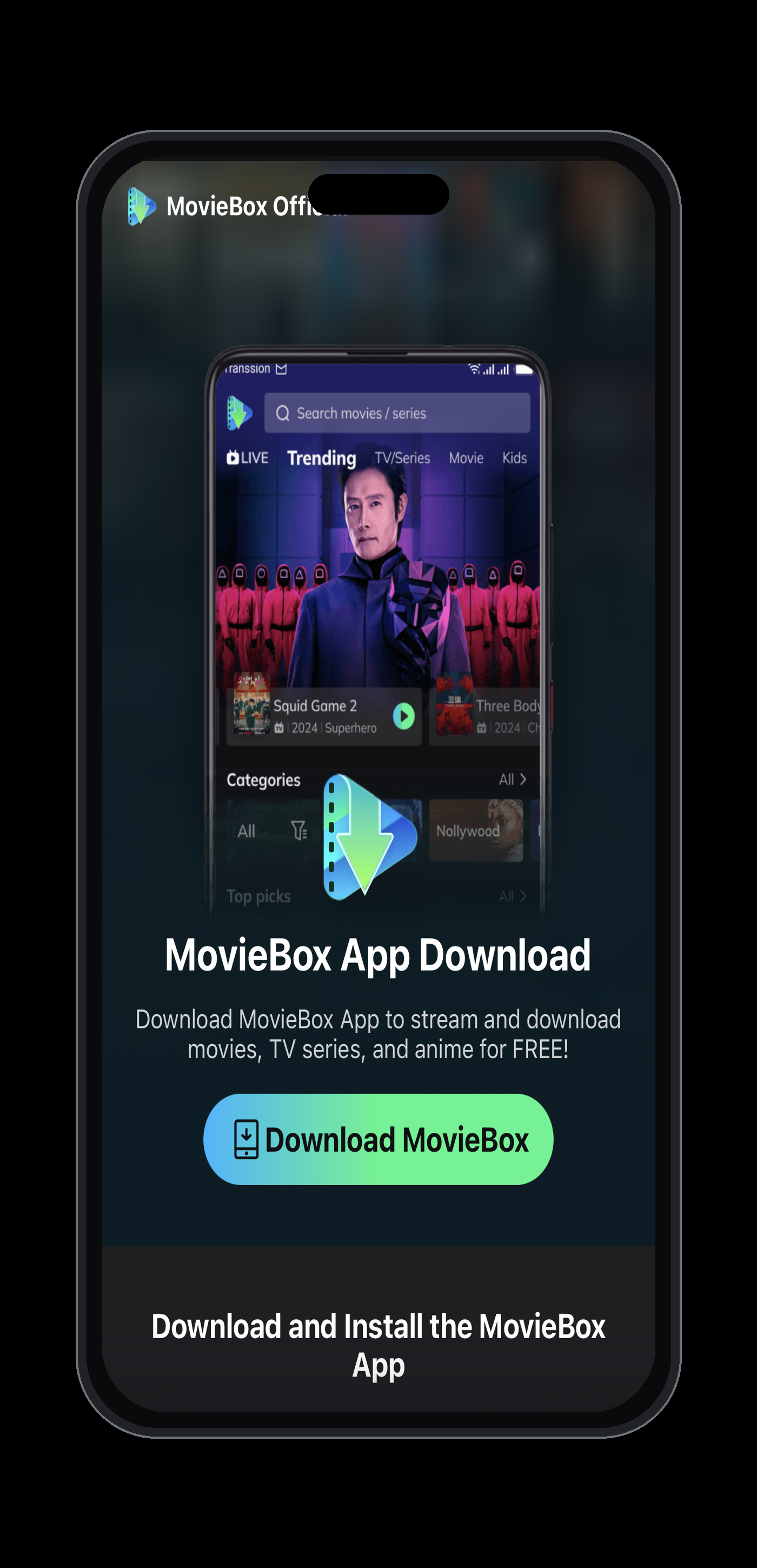
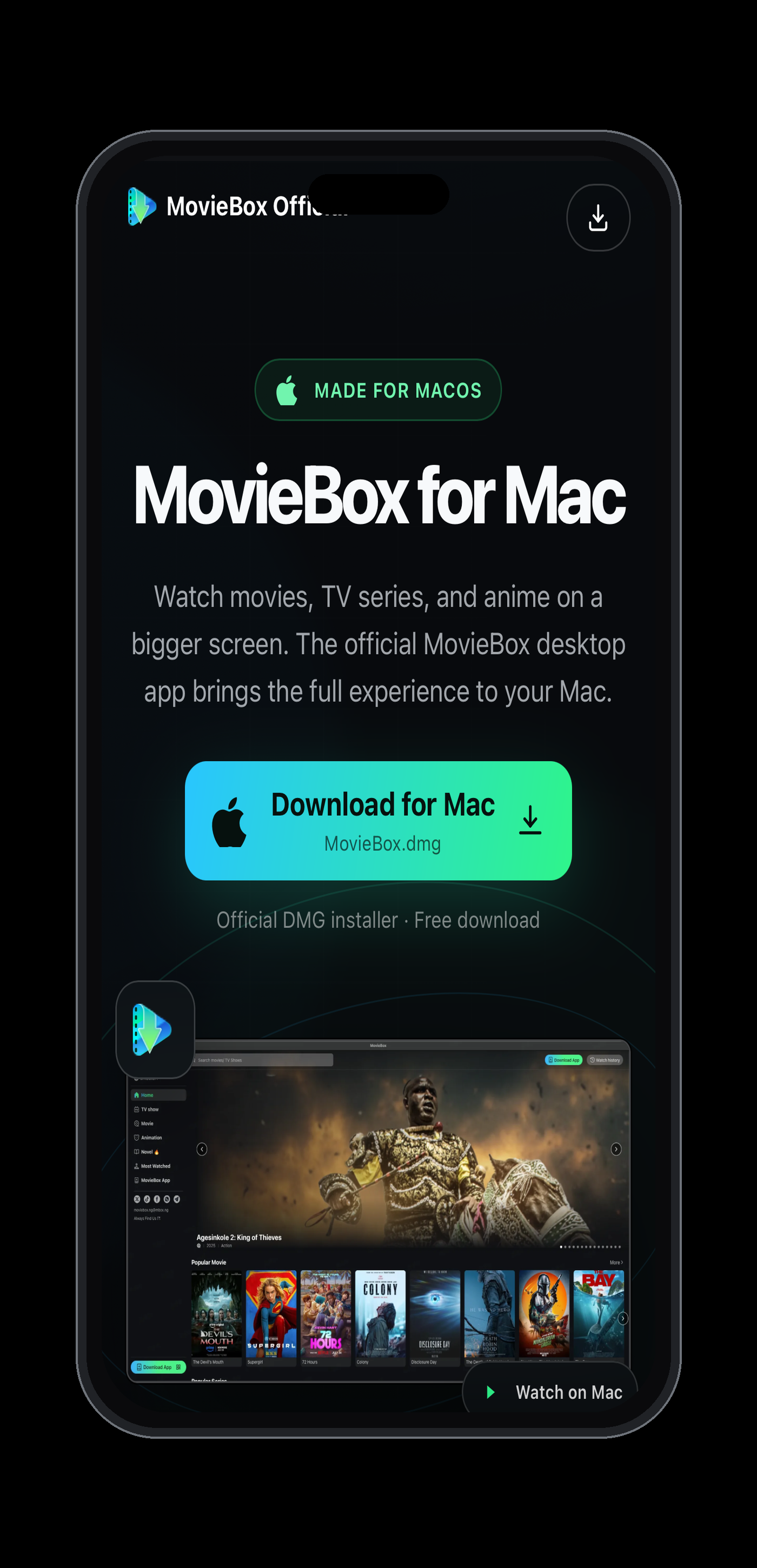
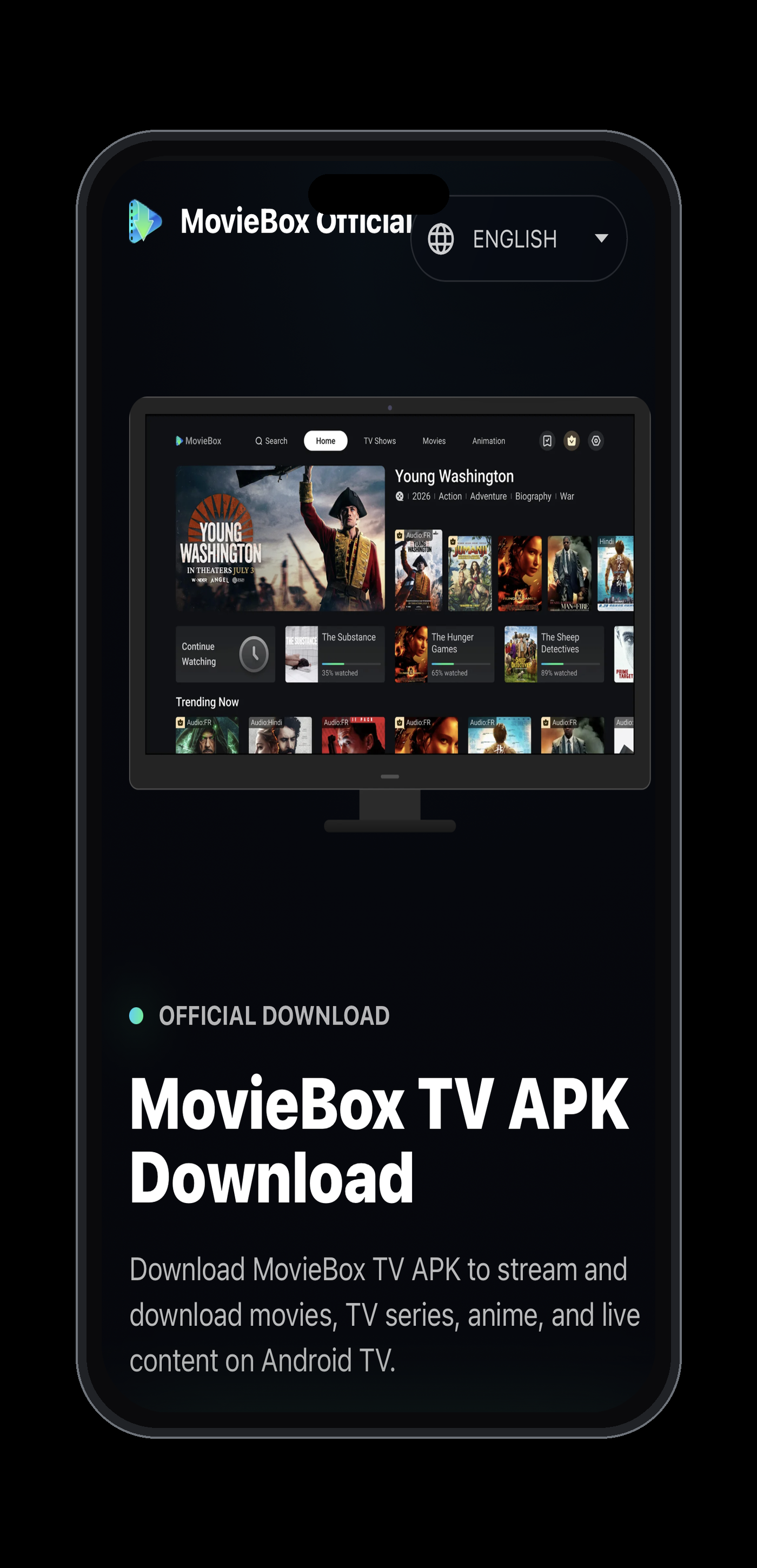
Choose the official download screen for your device. Tap any image to open the full-size version.
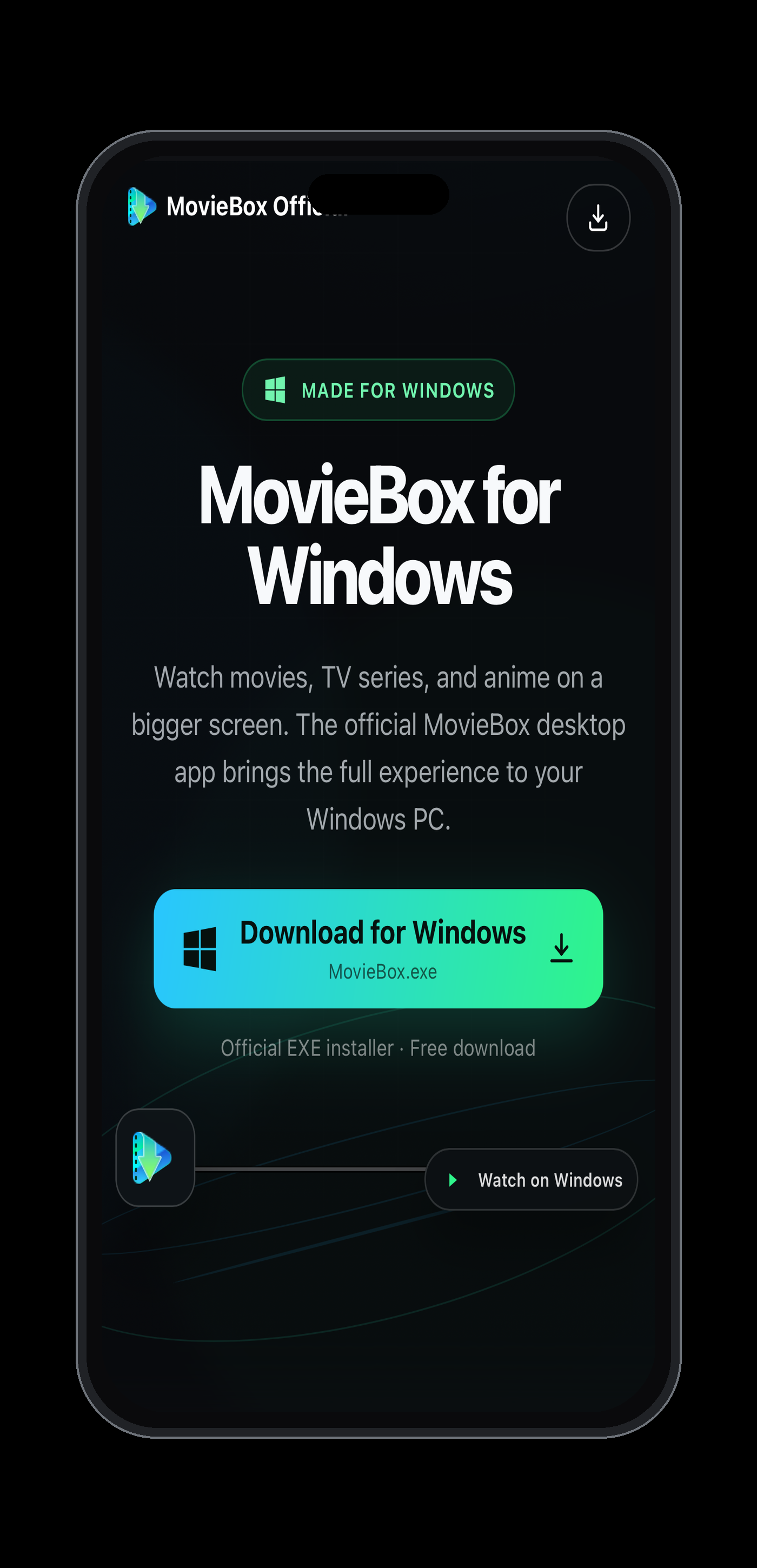
What You Need Before You Start
- An Android phone or tablet. MovieBox is lightweight and runs on almost any modern Android device. If you have an older phone with limited RAM, an older stable build of MovieBox will run more smoothly than the newest version.
- Roughly 200 MB of free space. The APK itself is about 66 MB, and the app needs extra room for temporary files while it streams.
- A stable internet connection. Steady Wi-Fi is best — a connection that drops mid-download is the main cause of a broken or partial file.
- A way to open the downloaded file. Most phones can open an APK straight from the browser’s download list. If yours cannot, use a free file manager such as Files by Google.
How to Install the APK Step by Step
- Enable unknown sources. Go to Settings → Apps → Special app access → Install unknown apps, select your browser (such as Chrome), and turn on Allow from this source. On older Android versions, go to Settings → Security and enable Unknown sources.
- Download the APK. Tap the download button above. The file saves automatically to your Downloads folder; if Chrome shows a warning, tap Keep.
- Open the file. Open your file manager, go to Downloads, and tap MovieBox.apk.
- Install and open. Tap Install, wait about 10 seconds, then tap Open. No sign-up is required — just choose a title and start watching.
When the app opens for the first time, it may ask for a couple of permissions — storage access is used to save downloads, and notifications keep you informed when a new episode or version arrives. Grant them, let the home screen finish loading, and you are ready to pick a title. If the screen looks blank or stuck on the first launch, close the app fully and reopen it once before you troubleshoot further.
Tip: On Android 11 and newer, the unknown-sources permission is per app rather than global. If the install is blocked, check that “Allow from this source” is turned on specifically for the browser you downloaded with.
Keeping MovieBox Updated
MovieBox does not update automatically. When a new version is released, download the latest APK from the official download page and install it directly over your existing app — there is no need to uninstall first, and your downloads and settings stay intact.
To check which version you are running, open Settings inside the app and look for the About or Version entry near the bottom of the menu. If a new build ever feels slower or starts crashing, you can go back to the previous release — older stable builds are kept on the official download server.
If you ever need to remove the app, go to Settings → Apps, tap MovieBox, and tap Uninstall. Movies you downloaded for offline viewing stay in your storage until you delete them manually from the MovieBox folder in your file manager.
Installation Problems: Two Quick Fixes
- “App Not Installed” — unknown sources are not enabled for the right app, or the toggle was reset (common on Samsung devices after a system update). Turn it back on and install again.
- Parse error — the APK did not download completely. Delete the file, reconnect to a stable Wi-Fi connection, and download it again from the button above.
“Can’t open this file” when you tap the APK usually means the download finished as a partial or misnamed file. Open the Downloads folder in a file manager, confirm the file is named MovieBox.apk and is roughly 66 MB, and download it again if the size looks wrong.
If the problem starts after the app is open — the app opens but shows a blank screen, closes by itself, or freezes when you tap a title — close MovieBox completely and reopen it first. If it still misbehaves, go to Settings → Apps → MovieBox → Storage and tap Clear cache, then open the app again. When the newest build keeps crashing on your device, uninstall it and install an older, stable version of MovieBox instead — that is the reliable fix for problems that start after the app is open.
Watch Movies and TV Shows on MovieBox
Once MovieBox is open, you land on a home screen with Trending, Popular, and Top Rated sections. To get a movie playing:
These screens show the main browsing areas you can use before choosing a title:
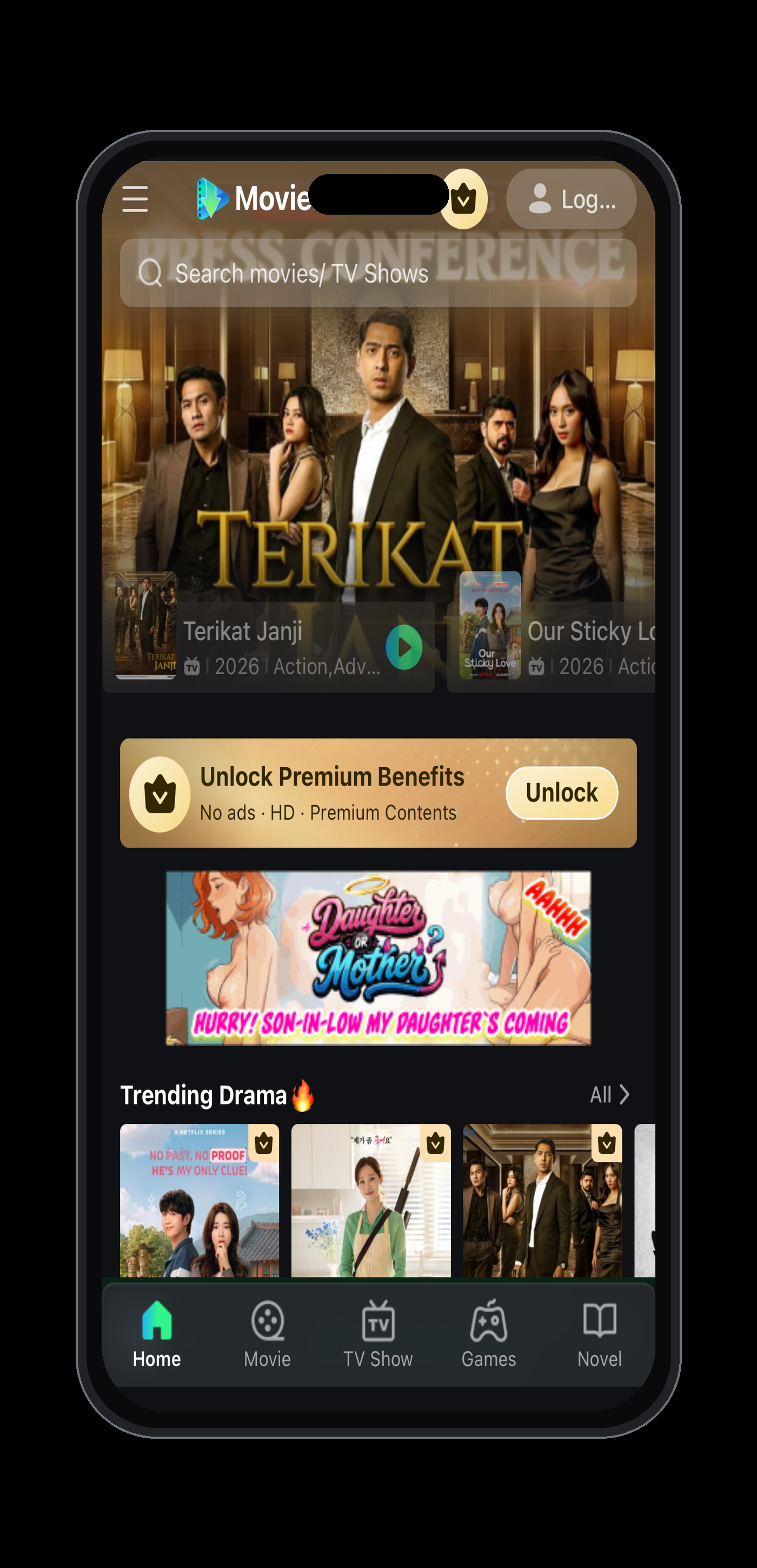
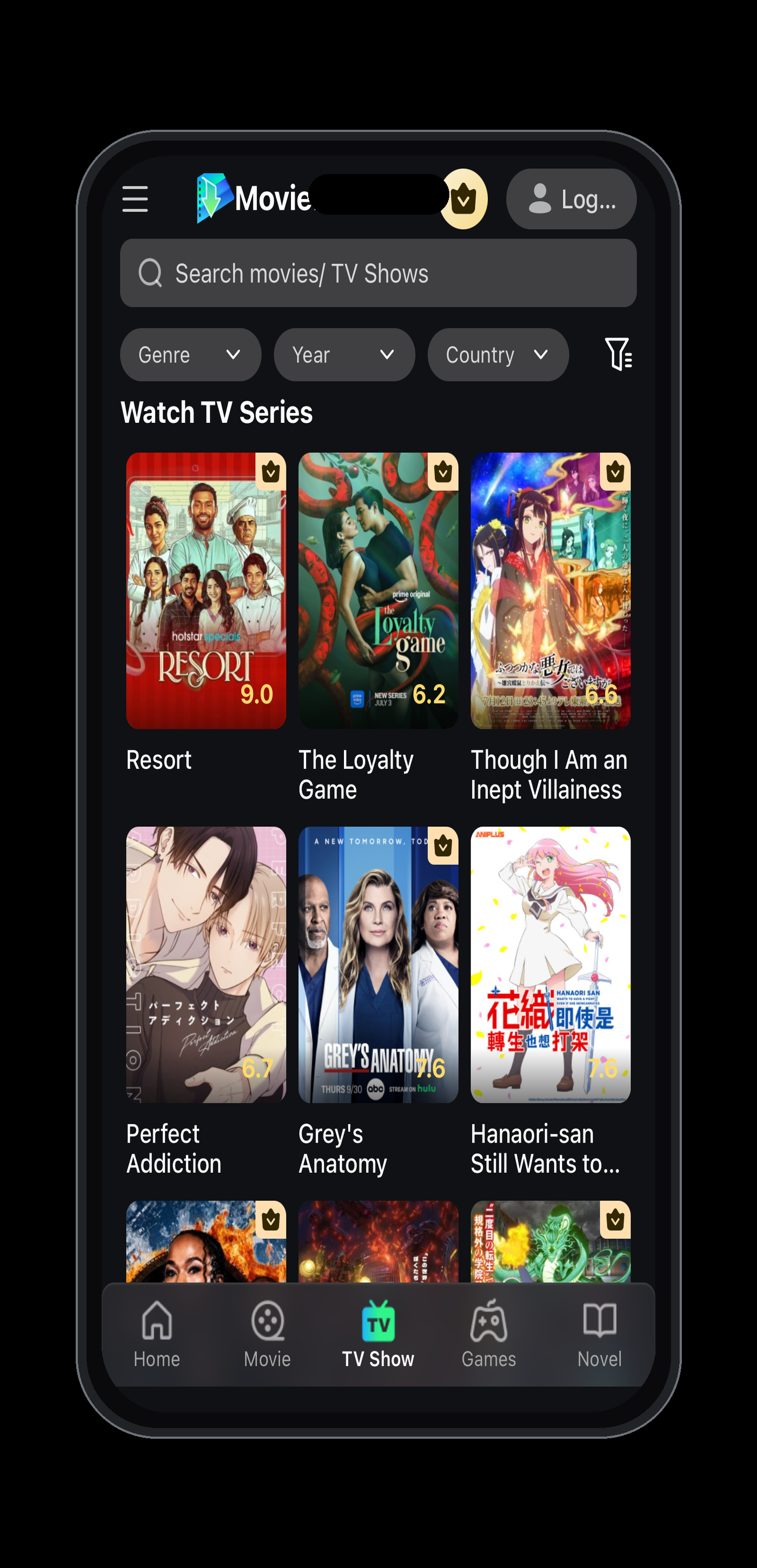
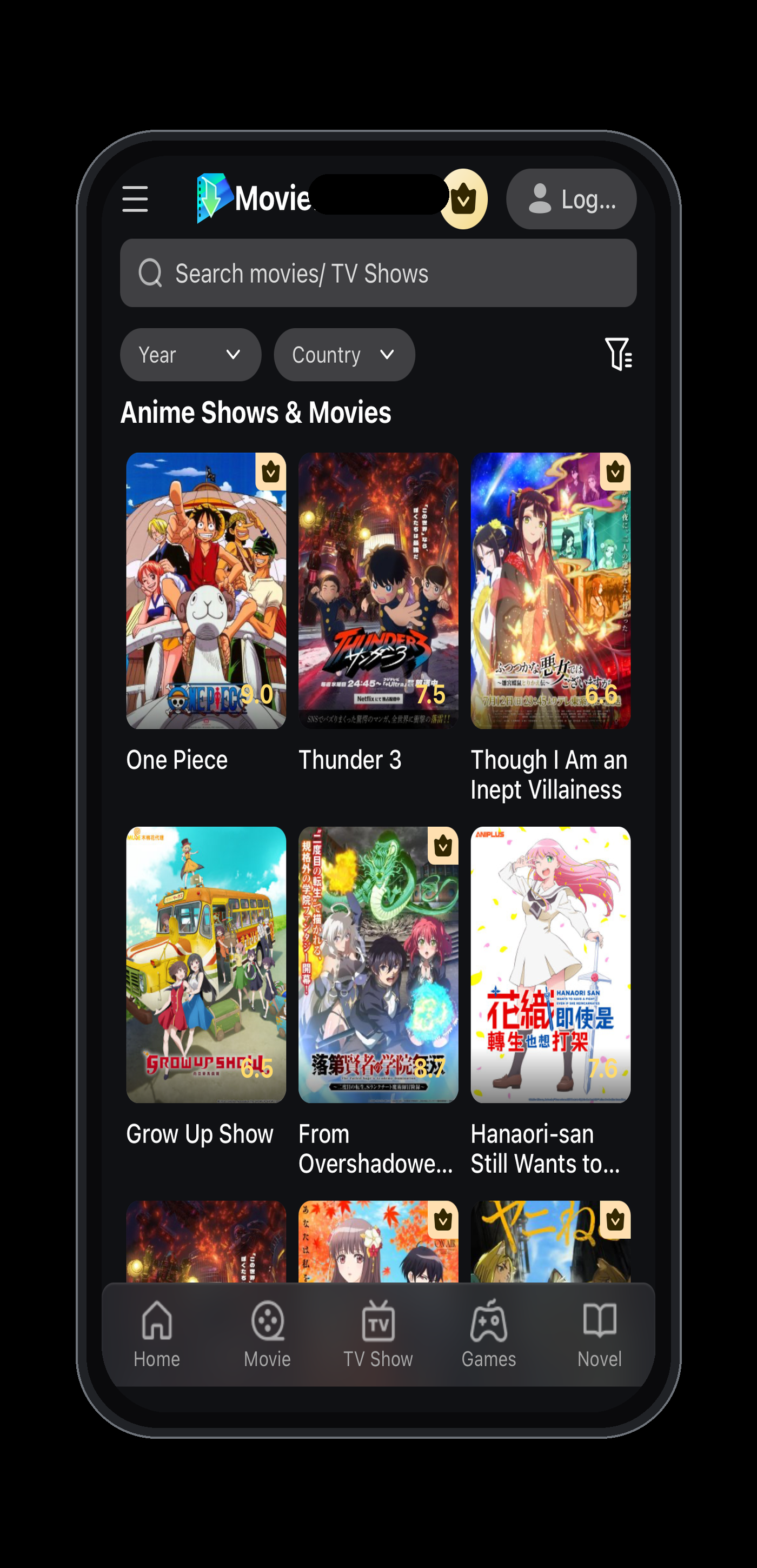
- Tap any title on the home screen, or use the search bar at the top to find a specific movie, actor, or TV show.
- Tap the title to open its detail page with the rating, description, and available sources.
- Tap Play — the video starts within a few seconds.
- If the first source buffers, open the source selector inside the player and switch to a different one. MovieBox shows multiple sources for most titles.
The detail page holds the useful information before you press play: the poster, title, year, and rating, plus a short description, the list of available sources, and similar titles you might like. For a TV show, the page also lists seasons and episodes, so you can jump straight to the latest episode instead of hunting through the home screen.
Browsing tips that save time:
- The Trending and Popular rows are refreshed regularly, so new content is easy to spot.
- Tap the categories icon to filter by genre such as Action, Romance, Anime, K-Drama, or Horror.
- Use search for instant results by movie name, actor, or show title.
- Tap the bookmark icon to add a title to your watchlist and find it again later.
Watching on other screens works the same way once MovieBox is installed. On a PC or laptop, run the Android app inside an emulator such as BlueStacks or use the MovieBox website in your browser. On a TV, sideload the APK onto a Firestick or Android TV box. On iPhone or iPad, install the iOS version of the app — playback controls, sources, subtitles, and downloads work the same way once it is open.
Two small habits make daily use faster. First, when you pause halfway through a movie or episode, MovieBox remembers your spot — reopening the title offers to resume from where you stopped. Second, use search for actors as well as titles: typing an actor’s name lists the movies and shows on the service that feature them, which is a quick way to find something new.
Change Quality, Language, and Subtitles in the Player
Playback Quality
Tap the screen during playback to show the controls, then open the quality menu and pick the resolution that fits your connection: 480p uses the least data, 720p balances quality and speed, and 1080p gives the sharpest picture.
As a rule of thumb, use 480p on a slow or metered connection, 720p for everyday viewing on a phone, and 1080p when you are on fast Wi-Fi or watching on a tablet or TV-sized screen. If playback stutters, drop one quality step before you switch sources — it is often the quickest fix.
Interface and Audio Language
- To change the app’s interface language, open Settings → Language inside MovieBox and choose your preference. On a laptop running the app through BlueStacks, the setting is in the same place.
- To change the audio for one title, start playback, tap the screen, tap the audio track icon, and pick a language. Available tracks depend on the title — not every movie is dubbed in every language.
If your language is missing from the audio list, check another source for the same title — sources are often added by different groups and do not all carry the same dubs. Subtitles can fill the gap for most titles even when a dub is not available.
Player Controls at a Glance
Tap the screen once during playback to show or hide the controls. Along the bottom you will normally find play and pause, a seek bar with the elapsed and remaining time, and the volume, full-screen, and screen-lock buttons. For a series, the player usually adds an episode selector so you can move between episodes without leaving playback.
Subtitles
Tap the CC or speech bubble icon in the player controls to open the subtitle menu. From there you can:
- Pick a preloaded subtitle track in your language.
- Download subtitles from MovieBox’s online sources while connected to Wi-Fi.
- Upload your own subtitle file (for example, from Subscene or Open Subtitles).
- Adjust the font size and color, and use the sync slider to shift subtitles forward or backward if they do not match the audio.
When you upload your own file, plain-text subtitle files in the SRT format work best. Keep the file somewhere easy to find on your phone, choose it from the upload menu, and use the sync slider if the text runs early or late — the slider shifts the whole track in small steps until the dialogue matches the picture.
If no subtitles appear for a title, try a different source using the source selector — different sources sometimes carry their own subtitle files.
Download Movies and Watch Offline
Downloading lets you watch anywhere without an internet connection — on flights, commutes, or in areas with a weak signal.
How to Download a Movie
- Open the title you want.
- Tap the download icon next to the Play button.
- Choose your quality: 480p saves storage, 720p is the sweet spot, 1080p gives the sharpest picture.
- The download starts in the background. You can queue several downloads at once and keep browsing while they save.
Find everything you saved in the Downloads tab at the bottom of the app.
Downloads continue in the background, so you can start one movie, keep browsing, and queue a second or third download without waiting. If a download is interrupted, open it in the Downloads tab and start it again — interruptions usually happen when the connection drops for a moment or the phone sleeps.
Where Downloads Are Stored on Android
Downloads go to your phone’s internal storage in a folder named MovieBox. To browse them with a file manager: open your file manager → go to Internal Storage → open MovieBox → open Downloads. You can also use the Downloads tab inside the app and never touch the file manager at all.
How Much Storage Do Downloads Use?
For a full-length movie, expect roughly:
- 480p: 300–500 MB
- 720p: 700 MB–1 GB
- 1080p: 1.5–2 GB
Before choosing 1080p, make sure you have enough free space. If storage runs low, delete watched downloads from the Downloads tab inside the app.
Which quality should you pick? On a phone screen, 720p already looks sharp and keeps files around 700 MB to 1 GB. Choose 480p when you are short on space or only need a copy for a commute, and choose 1080p only when you plan to watch on a tablet, laptop, or TV and have at least 2 GB free. You can delete a file later and download it again in a different quality whenever you want.
Transferring Downloads to Another Device
- Built-in Transfer: open the Downloads tab, tap the Transfer icon at the top right, connect both devices to the same Wi-Fi network, select the files, and confirm.
- USB cable: connect your phone to a PC, open the phone’s storage, go to Internal Storage → MovieBox → Downloads, and copy the files.
- File-sharing apps: tools such as SHAREit or Send Files to TV work well for moving files wirelessly to TVs and tablets.
Downloading on iPhone, PC, and TV: the download icon works the same way inside the MovieBox app on iPhone and iPad, and saved files play from the app’s downloads area with no internet needed. On PC, run MovieBox inside an Android emulator such as BlueStacks and use the same download steps as on Android. On Firestick or Android TV, downloads save to the device’s storage and show up in the same Downloads tab.
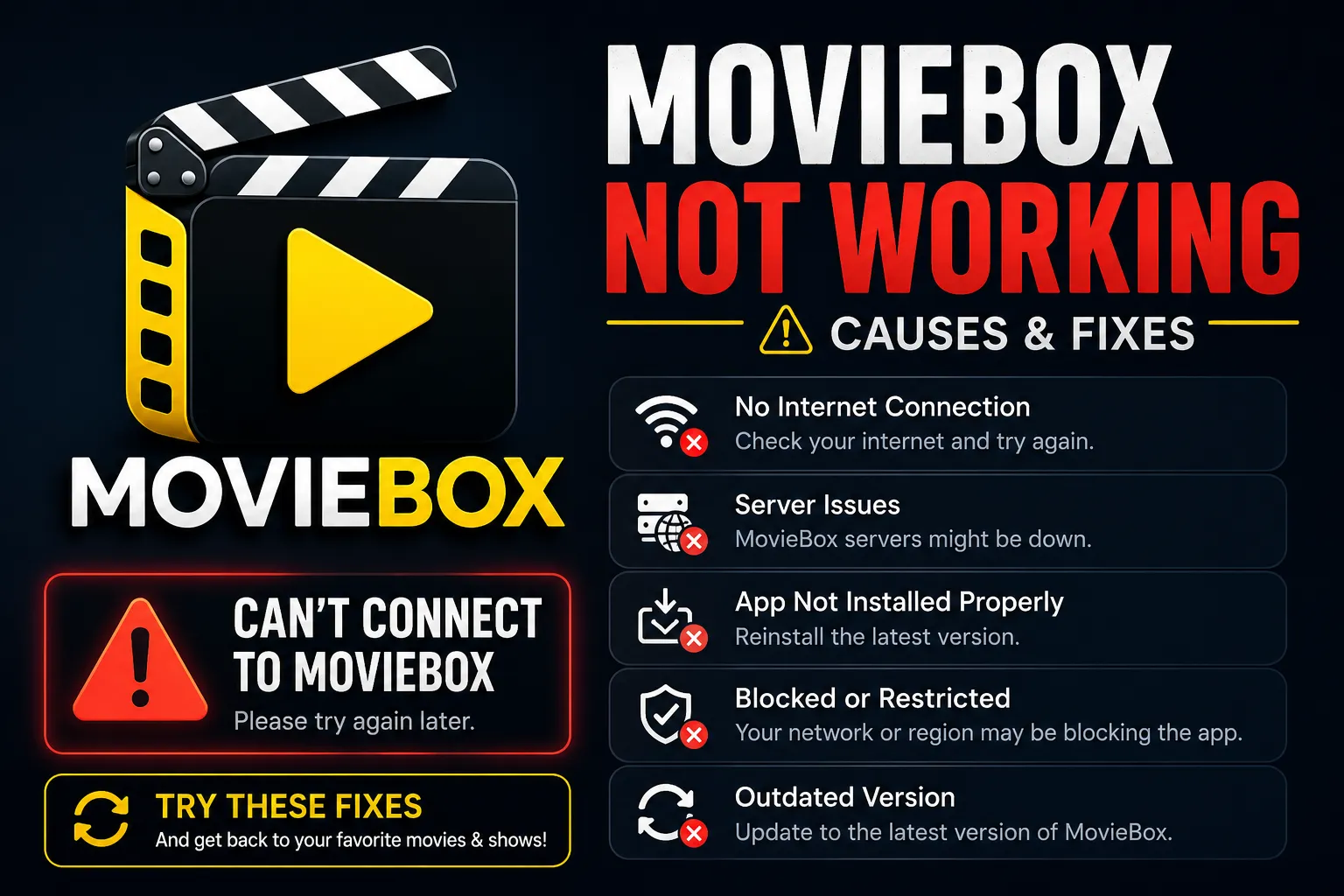
Downloads Not Working?
A download that will not start, stays stuck at 0%, or fails midway is almost always one of three things: the source, the network, or storage. Work through these fixes in order:
- Download not starting? Switch to another source and try again — not every source supports downloads.
- Stuck at 0%? Change networks (Wi-Fi to mobile data) or drop to a lower quality.
- Download failed? Check your free storage, then restart the download from the Downloads tab.
- No download button at all? Open a different source for the same title.
If downloads fail on every source, restart the app and then restart your phone — on rare occasions a hung download task clears only after a reboot.
MovieBox Pro: What the VIP Version Adds
MovieBox Pro is a separate, account-based version of MovieBox that requires an invitation code to access. It has its own version history and adds VIP features on top of the standard app: HD streaming, a larger content library, faster downloads with no download limits, and more titles available for offline saving.
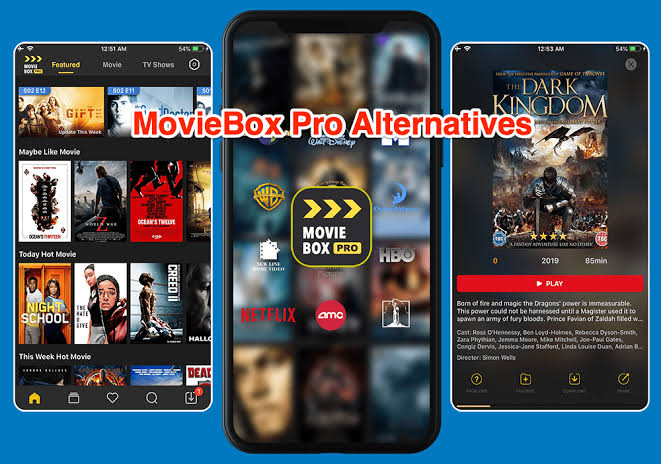
In practice, a Pro account gives you:
- Faster downloads that depend less on server load during peak hours.
- No download limits, so you can save entire seasons before a trip.
- HD streaming plus a larger library with more titles marked as downloadable.
- VIP extras that change over time — the perks for your account are shown inside the app once you are signed in.
Start with the free version — you can stream and download without paying, and most viewers never need more. Upgrade to Pro only if you download heavily, want faster peak-hour streams, or keep finding titles that are missing from the standard library.
Free users can still download and stream, but speeds can depend on server load during peak hours. If downloads feel slow during peak hours, upgrading to Pro is the main fix — Pro adds faster downloads, no download limits, HD streaming, and a larger library.
MovieBox Old Versions: When the Latest Build Is Not Right for You
The newest version is not always the best one for your situation. Users go back to older builds for three reasons:
- New versions crash or freeze. Major updates introduce new code, and updates sometimes break features that used to work. Older stable builds stream more reliably on the devices people already own.
- Older devices cannot handle the latest version. Hardware requirements grow with every release, and phones with limited RAM run better on versions that use fewer resources.
- The earlier interface is preferred. The old MovieBox layout was simple and clear, while recent updates add more features and menus. Simpler designs also load faster on low-end devices.
Which old version should you choose? Start with the newest release and step back only if you hit a problem. On a phone with 2 GB of RAM or less, begin with a 2.11.x build such as 2.11.16 — those versions were built for the hardware of their time and use noticeably less memory. If you simply prefer the classic layout, the 2.11 builds keep that interface while still playing current titles.
Old Version Downloads
- MovieBox 3.2
- MovieBox 3.1.12
- MovieBox 2.11.16
- MovieBox 3.0.6
- MovieBox 2.11.4
- MovieBox 2.11.12
- MovieBox 2.11.20
Only download old builds from the official page. Files on random third-party mirrors may be repackaged with extra code, so stick to the links in this list — each build here is checked before it is published, and the version number is shown next to the download link.
Installing an Old Version
On Android, uninstall the current MovieBox version first (this prevents conflicts between builds), enable unknown sources for your browser, download the build you want, and install it from Downloads. On iPhone and iPad, old builds are distributed as IPA files and must be sideloaded with a tool such as TrollStore (permanent, no re-signing), AltStore (free, re-signs every 7 days), or SideStore (no PC needed after setup).
Going back to the newest build later is just as easy: download the latest APK and install it over the old version. Moving from an older build to a newer one does not require uninstalling first, and your downloads and settings carry over.
On Firestick and Android TV, the same APK can be sideloaded — older builds often run better on TV hardware with limited RAM. Allow unknown sources for the sideloading app you use (such as Downloader), open the APK from there, and follow the same install prompts as on a phone. On a PC or laptop, the Android version runs inside an emulator such as BlueStacks, where the APK installs the same way.
FAQ
Do I need an account to watch on MovieBox?
No. Open the app and tap any title — you can watch without creating an account or signing in.
Is MovieBox free?
Yes. The APK is free to download and the standard app is free to use. MovieBox Pro is a separate, optional upgrade.
Why is MovieBox not on the Google Play Store?
MovieBox is not listed on the Play Store, so it is distributed through the official APK page. That is why you install it manually and allow unknown sources once.
Is the MovieBox APK safe?
Yes, when you download it from the official page. Avoid third-party APK sites, enable “Allow from this source” only for the browser you install from, and switch it off again afterwards if you prefer.
Can I use MovieBox on PC or iPhone?
Yes. On PC, use the MovieBox website in a browser or run the Android app through an emulator such as BlueStacks. On iPhone and iPad, MovieBox is available through its iOS version, and old builds can be sideloaded as IPA files.
Can I watch MovieBox downloads without Wi-Fi?
Yes. That is the point of downloading — saved movies and episodes play offline with no internet connection needed.
Do MovieBox downloads expire?
Downloads stay on your device until you delete them. In rare cases — if a title is removed from the library or a major app update changes the file format — an old download may need to be re-downloaded.
Can I download movies in 4K on MovieBox?
No. Downloads are available up to 1080p (Full HD).
Why is my download not working, or why does a title have no sources?
Usually the source, the network, or storage. Switch to another source, change networks, free up space, and restart the download. Some titles are temporarily unavailable or only offered in certain regions.
Can I cast MovieBox to my TV?
On many versions, yes. Start playback, tap the screen, and look for the cast icon — your phone and TV must be on the same Wi-Fi network. If there is no cast option, connect with HDMI or sideload MovieBox on an Android TV or Fire TV device.
Can I install MovieBox on an older Android phone or tablet?
In most cases, yes. The APK is lightweight and runs on a wide range of devices, including tablets. On Android 11 and newer, enable the per-app “Install unknown apps” permission for your browser first. If the latest version will not run well on an older device, install the closest older build.
What is the difference between MovieBox and MovieBox Pro?
Standard MovieBox needs no account. MovieBox Pro requires an invitation code and account login, and adds VIP features such as HD streaming, a larger content library, and faster downloads.
How do I update MovieBox when a new version comes out?
MovieBox does not update by itself. When a new build is released, download the latest APK from the official page and install it over your current version. Your downloads, settings, and watchlist stay intact.
Are MovieBox old versions safe?
Yes, when you take them from the official download page. The old builds on the official download page are checked before they are published. Avoid random third-party APK mirrors, which may repackage files with unwanted code.
How do I find new movies on MovieBox?
Check the Trending and Popular rows on the home screen, filter by genre with the categories icon, or search by movie name, actor, or show title. Adding titles to your watchlist makes new releases easier to track down later.
Can I move my downloads to another device?
Yes. Use the built-in Transfer option when both devices are on the same Wi-Fi network, copy the MovieBox Downloads folder over a USB cable, or send the files with an app such as SHAREit.
Conclusion
MovieBox is easy to use once you know where everything is: install the free APK, press play on any title, and use the player controls to adjust quality, language, and subtitles. Download movies for offline viewing when you need them, and if the newest build ever gives you trouble, an older version is one download away. Everything you need — installing, watching, changing language and subtitles, downloading offline, and switching between versions — is covered on this one page.
Bookmark this page if you plan to set up a new phone or tablet later — the install and download steps apply to future versions too, and the old-versions list is refreshed whenever a stable build is added or retired. Menu names and labels can vary slightly between versions, so if a step does not match your screen, look for the equivalent option in the same menu.
Ready to install MovieBox and start watching for free?
Download Latest MovieBox APK